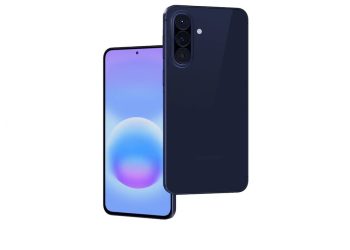
You have set your new Pixel 11 down on a charger, the screen has timed out, and instead of a black slab you want something useful — the battery percentage, a decent clock, maybe the weather. That is what the Pixel 11’s screen saver settings now do, and there is a new option called Charge that turns the phone into a proper charging display. Here is how to set it up, what each choice actually shows, and which ones quietly want more access to your phone than you might expect.

Why the Pixel 11 screen saver is worth setting up
Google’s screen saver has been in Android for years, but on Pixel it was thin: essentially one clock, a photo frame, and a couple of layout choices. On the Pixel 11 the clock selection has been widened out and a charging-specific screen saver added, which matters more than it sounds now that a Pixel spends much of its idle life sitting on a magnetic or wireless charger rather than face-down on a desk. A screen saver only appears while the phone is charging or docked in the first place, so this is the screen you will actually be looking at in that state.
How to set up the Pixel 11 screen saver
- Open Settings on your Pixel 11.
- Tap Display & touch, then Screen saver.
- Turn on Use screen saver.
- Under Choose a screen saver, tap the option you want.
- Tap When to show and pick either While charging or While upright and charging. There is also a Restrict to wireless charging toggle if you only want it on the stand, not on a cable.
- Tap Use screen saver to preview it immediately instead of waiting for the screen to time out.
Google’s own Set up a screen saver page lists the available types as different clock styles, weather updates, a personal photo frame, charging status and home controls — so the charging display is now a first-class option alongside the clock, not a hidden extra.
The new Charge screen saver
The Charge option is the headline addition on the Pixel 11. As Droid Life found on retail hardware, it shows the current battery level, the type of charging in progress — a “Fast charging” label, for instance — and an estimate of when the charge will finish, with the 0–80% and 80–100% stretches shown as separate sections. It works in portrait and landscape, so it is readable whether the phone is standing upright on a dock or lying flat.
That 80% split is the genuinely useful part. Pixels slow the last stretch of charging deliberately to protect the battery, which is why a phone that hit 80% in half an hour can take another 40 minutes to top out. Seeing the two phases separated on screen makes the phone’s behaviour legible instead of looking like a stall.
More clock faces on Everyday Clock
The other change is to the Everyday Clock screen saver. Droid Life counts six digital clock styles plus three analog ones on the Pixel 11, pulled across from the lock-screen clock set, where previously there was effectively a single choice. Layout options and the control over which theme shows, and when, are still there.
Running more than one screen saver
You are no longer limited to one. Google’s support page describes swiping left or right from the edge to switch between active screen savers, touching and holding the screen to see an overview of them all, and dragging a screen saver into a different position on the setup screen to change the order. So a clock, the Charge display and a photo frame can all be active, with the rotation ordered how you like.
If the new options are not there yet
Two things gate them. Make sure your Pixel 11 has taken the out-of-the-box firmware update that ships alongside the phone — a brand-new device will usually prompt for one on first setup. Then check the Play Store for an update to the Dreams app, which is the system component that supplies screen savers; the new options arrive with it rather than with a full Android release. Both are per Droid Life’s testing on shipping units.
The permissions worth thinking about first
This is the part Google’s page states plainly and most write-ups skip. To get live weather on the screen saver you have to set the phone’s location permission to Always allow, and to use the Personal Photo frame you have to grant access to your photos and media library.
Neither is unreasonable on its face, but both deserve a beat of thought. “Always allow” is the broadest location setting Android offers, granted for the sake of a temperature reading on a screen you glance at while your phone charges — precise location whenever the phone feels like asking, not only while you are looking at it. And a photo frame on a charging phone is, by design, a display that cycles your personal photos on an idle screen in whatever room the charger lives in: a kitchen counter, a shared desk, a hotel nightstand. If your charger sits anywhere other people pass, the Charge display or a clock does the job with none of that exposure.
The low-light behaviour is worth setting either way. Under Screen saver tap Low light mode to control what happens when the room goes dark — by default the phone transitions to a dim low-light clock rather than staying at full brightness, which is what makes any of this tolerable as a bedside display.
Sources: Droid Life