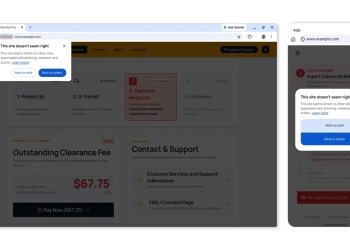
Chrome is now warning users before it opens a website that doesn’t use HTTPS, and the check is on by default for everyone. Google has switched on the Always Use Secure Connections setting, which used to be opt-in. Android Authority reports that Google confirmed the change this week, and it is rolling out to all users.
Chrome asks once per site. After you approve a site, it won’t ask again unless you haven’t visited it for two weeks.
Why Google is making HTTPS the default in Chrome
This is the change Google announced in October 2025 and planned for October 2026. The setting first launched in 2022 as an opt-in. Google said it would enable it for Enhanced Safe Browsing users in April 2026, before turning it on for everyone.
This means Chrome will ask for the user’s permission before the first access to any public site without HTTPS.
That’s how Google’s Chrome Security Team described the plan on its Online Security Blog last year.
Google’s reasoning comes down to timing. Chrome’s Not secure badge only appears after an insecure connection has already been made. And when an HTTP page silently redirects to HTTPS, attackers get a foothold without the user ever seeing a warning.
What the warning looks like
The prompt tells you the site doesn’t support a secure connection. You can go back or continue to the site.
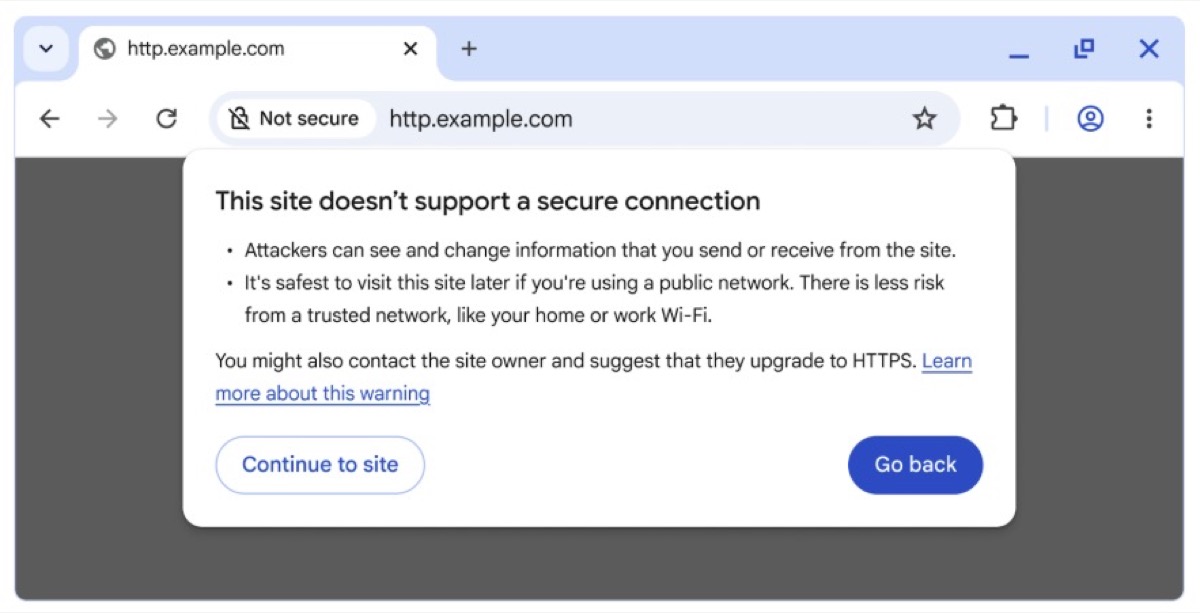
Some addresses are exempt, according to Android Authority. Local IP addresses such as a router page at 192.168.0.1 won’t trigger it. Single-label intranet names are excluded too. Google’s 2025 post says the default covers public sites, with private sites available as an optional extra in settings.
Most people should rarely see the prompt. Google’s data, reported by Android Authority, shows nearly 95% of desktop Chrome users see no HTTP warnings in a given week. Fewer than 1% see three or more.
How to turn off Chrome’s HTTPS warnings
An old HTTP site you still rely on can keep triggering the prompt. If that gets in your way, Android Authority gives this path to switch the setting off:
- Open Chrome’s Settings.
- Go to Privacy and security, then Security.
- Turn off Always use secure connections.
Keep in mind that turning it off removes the warning for every site, not just the one causing trouble. Approving the problem site once is usually enough, since Chrome remembers it for as long as you keep visiting. For Chrome’s other safety prompts, see our report on Enhanced Protection’s softer warnings.
Sources: Google Online Security Blog, Android Authority