
You have a new Pixel in a box, an old phone full of years of messages and photos, and about twenty minutes of patience. What actually goes across, what quietly does not, and what happens if the transfer dies halfway? Google’s own Pixel support documentation answers most of it, and the parts it does not answer loudly are the ones worth knowing before you start.
The reason to get this right on the first attempt is simple: some data only moves during the initial setup, and some of it (WhatsApp history from an iPhone, in particular) only moves over a cable. Skip a step and the fix can mean a factory reset.

Before you start: get both phones ready
Google’s checklist is short and worth following literally. You need a Google Account to set the phone up at all, and then:
- Sync photos, videos, messages and contacts to the cloud on your old phone in advance.
- Fully charge both phones. Google says a typical transfer takes about 20 minutes, but large ones take longer.
- Put both phones on a strong Wi-Fi network and keep them next to each other.
- Turn off the screen lock on both devices, which Google recommends specifically to avoid interruptions mid-transfer. Turn it back on the moment the transfer finishes, and do not leave either phone unattended while it is unlocked.
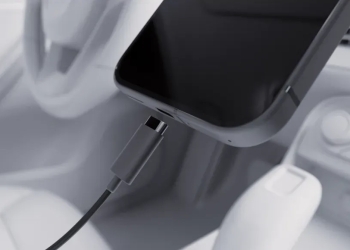
- Find a USB-C cable. Google’s own tip calls the cable a “failsafe if Wi-Fi drops”, and it is usually faster.
- On the old phone, update Google Messages to the latest version and set it as the default messaging app — otherwise your texts are the thing most likely to go missing.
One easily missed item: if your old phone is old enough to store SMS on the SIM card, move those messages to internal storage first, because SIM-stored messages are not picked up.
How to transfer data to a new Pixel during setup
On a Pixel 8 or newer, the flow is a QR-code pairing rather than the old cable-first dance:
- Turn on both phones. On the Pixel, tap Pixel or Android device.
- On the old Android phone, tap Set up in the notification that appears. A QR scanner opens — use the old phone to scan the code shown on the Pixel.
- Set up your SIM or download your eSIM when prompted, then enter your old device’s screen lock code on the Pixel. Your Google Accounts come across at this point.
- Follow the on-screen list to pick what to copy. Google recommends the QR-code method over plain Wi-Fi.
To force a cable transfer instead, tap the screen five times on the “Copy data from your Android device” prompt, then connect the two phones with a USB-C cable and tap Copy. On a Pixel Fold, Pixel 7 Pro or earlier the wording differs — you go through Copy Apps & Data, then Next, then either Express (Google Account plus everything backed up) or Customize to deselect items.
Already finished setup? Use Android Switch
You do not need a factory reset to try again. Google’s documentation gives the path directly: on your Pixel, open Settings, then tap Accounts & backup > Android Switch > Start. Data copied this way merges with what is already on the phone rather than wiping it. If it has been under 72 hours and you see a “Pixel setup isn’t done” notification, tapping that finishes the job too.
What does not transfer
This is the list nobody reads until something is gone. Per Google, these do not come across automatically:
- WhatsApp chat history — needs a cable during initial setup when coming from an iPhone, plus WhatsApp’s own cloud backup turned on beforehand.
- Non-Google accounts and anything synced to them, including contacts and calendars.
- Apps not from the Play Store — sideloaded apps and anything from a rival store such as the Galaxy Store must be reinstalled by hand.
- Photos, videos and music in hidden or locked folders, and data from apps that do not use Android’s backup system.
- Ringtones, app permissions, and certain device settings that vary by phone and Android version.
- Paid iOS apps, which have to be bought again on Google Play.
Coming from an iPhone
Two steps matter more than the rest. Use a cable: Google states plainly that wireless transfers using the Android Switch app from the App Store will not include messages. And turn off iMessage and FaceTime on the iPhone before transferring — if you have already switched, deregister your number at Apple’s deregistration page, or new texts keep vanishing into iMessage. For iCloud photos, installing Google Photos on the iPhone and turning on backup pulls both local and iCloud images into your account; Apple’s own direct transfer request typically takes three to seven days.
If something looks missing, wait before panicking
Google Messages can take up to 24 hours to index and display a large message history, so leave the phone plugged in and search for a keyword you know exists before assuming the texts are gone. Transfers also pause outright if the new Pixel runs out of storage. For anything over 60GB, Google’s advice is to use a cable and fully charge both phones.
One honest caveat: this documentation is generic Pixel guidance rather than model-specific, and the on-screen wording shifts between Android versions, so treat the button names as a guide rather than gospel. If a step is missing on your device, Android Switch after setup will almost always get you there.
Source: Google Pixel Phone Help