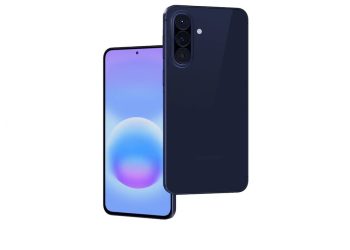
Oneplus X smartphone was launched by OnePlus targeting the mid range smartphone market with a big focus on its design. The device runs on Oxygen OS which can be customised to large extent and in this post we take a look at some of the tips on how you can enable some of the additional features of Oneplus X some of which are hidden behind some deep settings.
Enable OnScreen Navigation Menu Buttons
If you like to use On-screen navigation menu buttons such as those present in devices like Nexus 4, you can enable that in OnePlus X too. Just navigate to Settings >> Buttons >>Enable On-screen navigation bar.

Swap Recent and Back Menu Buttons
You can swap the Recent and Back Menu buttons locations by navigating to Settings >> Buttons >> Swap Buttons. Just enable that option.
Always enable Home Button
If you have enabled the On Screen menu buttons, but still want the physical Home button to work, you can do that by navigating to Settings >> Buttons >> Always enable Home Button Which keeps hardware Home button enabled while using the on-screen keys.
Double tap the screen to wake up device
You can wake up the OnePlus X without using any physical buttons just by double tapping the screen. This option can be enabled by navigating to Settings >> Gestures >> Double tap to wake. You need to enable Gestures on the same screen first.
Double tap home button to sleep
Apart from using the double tap to sleep, you can also use double tap to sleep the screen using the home button. You can enable double tap home button to sleep by navigating to Settings >> Buttons >> Home Button >> Double tap action. Just set it to “Turn off screen”.

Enable Proximity wake
Another way to wake up the screen is just by moving your hand above Oneplus X. The feature is called as Proximity Wake and can be enabled by navigating to Settings >> Display >> Proximity Wake.

Auto Wake up Screen on receiving Notifications
OnePlus X automatically wake up on receiving Notifications for few seconds so that you can view notifications on the screen without touching the phone. The feature is called Ambient Display and can be enabled by navigating to Settings >> Display >> Ambient Display.
Turn off adaptive brightness
You can turn off adaptive brightness option to save some battery by navigating to Settings >> Display >> Adaptive brightness.
Enable USB OTG storage
Even though OnePlus X supports USB OTG, but the feature needs to be enabled first to make it work. USB OTG support can be enabled by navigating to Settings >> Storage >> OTG Storage.

Turn on battery saver automatically
Battery saver can be turned on automatically when your battery level reaches 15% or 5%. You can set that by navigating to Settings >> Battery and clicking on the three dots at the top right corner of screen >> Battery Saver and select Turn on automatically.

Switch to Dark Mode / Light Mode
You can switch to Dark MOde / Light Mode by navigating to Settings >> Customisation >> Dark mode. Toggle on or off to switch the dark or light mode.

Manage LED notifications color
You can change the LED notifications color for global notifications, Full battery, Battery charging and battery low by navigating to Settings >> Customisation >> Led notifications. You can choose between eight colours for each individual notification.

Change Battery Indicator to Percentage
You can change the battery icon to percentage. Just navigate to settings >> Battery. Now click on the battery icon just beside the search button. By clicking it, you will get option to change it the battery icon from bar to circle or percentage or hide it.

Use Volume buttons in Camera mode to take Pictures and Videos
In Camera mode or app, you can use the Volume buttons to click pictures or start of stop the video recording.