
AndroidPure
  • Leaks
  • News
  • Reviews
  • Updates
  • How to
No Result
View All Result
  • Leaks
  • News
  • Reviews
  • Updates
  • How to
  • Leaks
  • News
  • Reviews
  • Updates
  • How to
No Result
View All Result
AndroidPure
No Result
View All Result

How to Turn Off the Touchscreen on the New MacBook Pro

Guides Desk by Guides Desk
November 7, 2026
in Guide

Want the new MacBook Pro with PROLED XDR Display to ignore your fingers? You can turn off the touchscreen completely from System Settings. The catch is that Apple puts the switch under Accessibility, not under the Touch Display settings.

Woman touching the screen of a MacBook Pro with PROLED XDR Display in an office
Image: Apple

The first touchscreen MacBook Pro began reaching buyers on Friday, November 6. Plenty of new owners will want touch for some tasks and none for others. A palm on the display or a stray tap during a video call is easy to trigger. Apple’s own support guides cover two fixes: switching touch off entirely, or trimming individual gestures.

How to turn off the touchscreen on the MacBook Pro

  1. Open System Settings.
  2. Select Accessibility in the sidebar. You may need to scroll down to find it.
  3. Select Touch.
  4. Turn on Ignore Touch Gestures.

To bring touch back, follow the same path and turn Ignore Touch Gestures off again.

Most people will look for this in Touch Display settings first, where it isn’t. Apple files it under Accessibility, so it’s worth remembering the path.

Turn off only the gestures you trigger by accident

If touch is mostly useful but a few swipes keep firing by mistake, you can disable those gestures one by one. Go to System Settings > Touch Display. You may need to scroll down the sidebar. Apple lists these options:

  • Swipe between pages: one-finger swipe, on or off
  • Swipe between spaces: three fingers, four fingers, or Off
  • Mission Control: swipe up with three or four fingers, or Off
  • App Exposé: swipe down with three or four fingers, or Off
  • Notification Center: swipe left from the right edge, on or off
  • Show Apps in Spotlight: pinch with thumb and three fingers, on or off
  • Show Desktop: spread with thumb and three fingers, on or off

A few system gestures also live at the screen edges. Swiping down from the upper-right corner opens Control Center. Swiping in from the right edge opens Notification Center. Swiping from the top edge over the Dynamic Island brings up Spotlight and Siri AI.

Which Macs this applies to

Only the MacBook Pro with PROLED XDR Display has a touchscreen. It starts at $2,899 for the 14-inch model and $3,399 for the 16-inch in the US. The 14-inch MacBook Pro with M6 and the Liquid Retina XDR models have no touch display, so none of these settings apply to them.

Touch also costs $400 more than the matching non-touch configuration, as we noted in our MacBook Pro PROLED pricing coverage. If you’re still deciding and expect to keep touch switched off most of the time, the non-touch model is worth a look.

One caveat: Apple’s touch guides don’t say whether Ignore Touch Gestures affects pen or stylus input. They also don’t cover battery life or other user accounts on the same Mac. If any of that matters to you, test it on your own machine first.

Sources: Apple Support, Mac User Guide
Related Posts

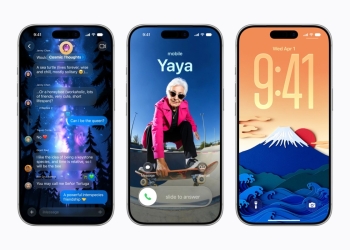
Three iPhones showing Apple Intelligence Image Playground creations in Messages, a contact poster and the Lock Screen
Guide

How to Check If an iPhone Photo Was Edited With Apple Intelligence

November 7, 2026
Customer in an Apple Store holding a boxed iPhone Duo and an Apple shopping bag
Guide

Apple Holiday Return Policy 2026: Returns Open Through January 8

November 7, 2026
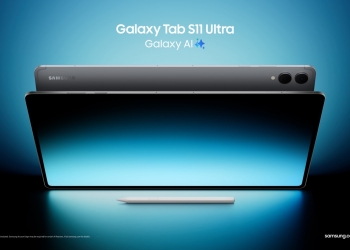
Samsung Galaxy Tab S11 Ultra in gray, front and back views with the S Pen
Guide

Galaxy Tab S11 and S11 Ultra Get One UI 9 in Europe, US Date Unknown

November 7, 2026
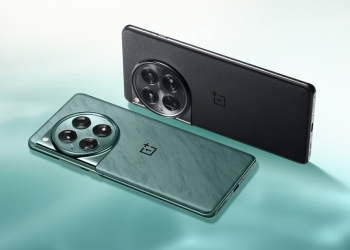
OnePlus 12 in green and black, rear view with the circular camera island
Guide

OnePlus 12 Gets ColorOS 17 on November 17, OnePlus Open on November 24

November 7, 2026
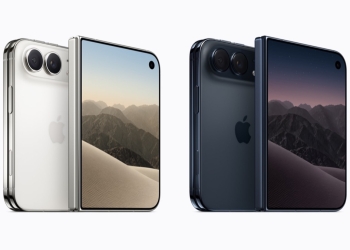
Apple iPhone Duo in star white and night sky, showing the rear camera bar and the partly unfolded inner screen
Guide

iPhone Duo Return Deadline: Launch-Day Buyers Have Until November 6

November 7, 2026
iPhone showing an Ask Siri prompt, illustrating how to turn on Siri AI
Guide

How to Turn On Siri AI: The Waitlist Now Only Applies at Busy Times

November 7, 2026

Follow Us

  • 914 Followers
No Result
View All Result

Popular

  • Google Play logo, the store where hidden nudify apps were found

    Hundreds of AI Apps on Google Play and App Store Hid Nudify Tools

    Share
    Share Tweet
  • One UI 9 Puts a Google Search Bar on the Galaxy Home Screen by Default

    Share
    Share Tweet
  • A Copycat WhatsApp Listing on Google Play Has Passed 500K Downloads

    Share
    Share Tweet
  • Galaxy Fit 4 Support Pages Go Live in India and UK Ahead of Launch

    Share
    Share Tweet
  • Motorola Signature 27 Comes to the US at $1,599.99 on November 26

    Share
    Share Tweet
  • Pixel Owners Are Still Waiting on Google’s November 2026 Update

    Share
    Share Tweet
  • Xiaomi’s HyperOS 4 Global Rollout: All 82 Eligible Phones and Tablets

    Share
    Share Tweet

Recent Posts

  • How to Turn Off the Touchscreen on the New MacBook Pro
  • Parents Sue Google Over Gemini Chats on Their Teen’s School Chromebook
  • Gboard Code Hints Rambler Will Remember Your Corrections
  • iOS 27 Stops HDMI Video When You Lock Your iPhone: No Fix in 27.2
  • How to Check If an iPhone Photo Was Edited With Apple Intelligence
  • Gentle Monster’s Android XR Glasses With Gemini Launch in December
  • Nest Hello Live View Stops Working for Many Owners, No Fix Yet
AndroidPure

Navigate Site

  • Privacy
  • About Us
  • Tip Us
  • Contact Us

Follow Us

No Result
View All Result
  • Leaks
  • News
  • Reviews
  • Updates
  • How to

This website uses cookies. By continuing to use this website you are giving consent to cookies being used. Visit our Privacy and Cookie Policy.