

Want to know when a phone or a pair of earbuds drops below your target price, without refreshing retailer pages all week? Black Friday is November 27, and early deals are already live at Amazon and Best Buy. A Gemini scheduled task can check a specific product for you at set times. It’s a paid feature with real limits, so check the requirements before you start.
What you need for Gemini scheduled tasks
Google’s Gemini Help page lists these requirements:
- A paid plan: the feature requires a Google AI Pro or Ultra subscription.
- A personal Google Account: work and school accounts aren’t currently supported. You also need to be 18 or older.
- Keep Activity turned on: this saves your Gemini activity to your Google Account. If you’ve turned it off for privacy reasons, you’ll have to switch it back on.
- A supported country: schedules aren’t available in the European Economic Area, Nigeria, Switzerland or the United Kingdom.
- A supported app: the Gemini mobile app, the Gemini app on Mac, or gemini.google.com.
Scheduled tasks are part of the agent features Google has been folding into Gemini’s main chat as a Task mode.
Why a narrow task works better than a broad one
Every run uses part of your Gemini usage allowance. Google says a schedule won’t run if you’ve hit your usage limit when it’s due. A vague, open-ended task can use up that allowance quickly and then miss the moment that matters.
Android Police’s test shows the problem. An open-ended sweep for a Galaxy S26 Ultra deal at Best Buy burned through the writer’s tokens. The writer then narrowed the task to specific products and set time windows. The final setup checked twice a day from November 19 to November 30.
How to create a price-tracking task in Gemini
The quickest way is to describe the task in plain language:
- Go to gemini.google.com.
- Click Task below the text box.
- Name the product, the retailer, your target price and how often to check. For example: check this phone’s Best Buy listing twice a day from November 19 to 30 and tell me if it drops below $200.
- Click Submit.
You can also build a time-based schedule by hand:
- Click Scheduled in the sidebar.
- Click Create a scheduled task and enter a name.
- Under Plan, type your instructions.
- Choose when the task runs, then click Create. It will appear under Active.
- To test it, hover over the schedule, click More, then Run now.
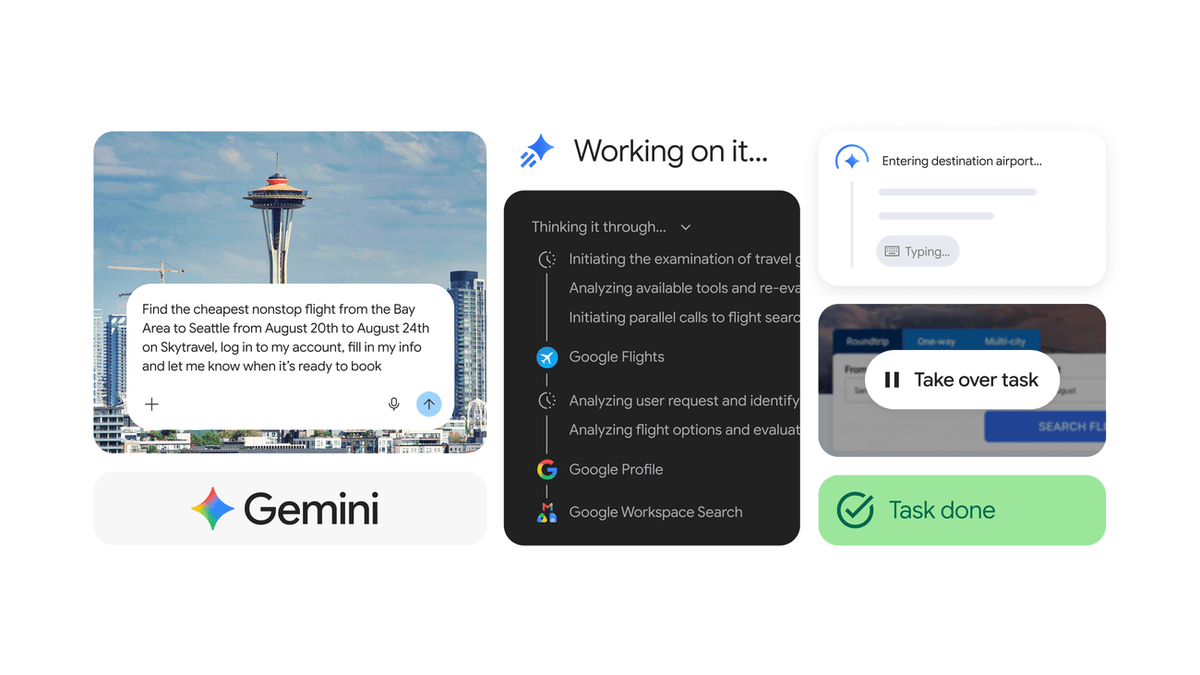
Android Police says Gemini notified the writer as asked. Google’s Help page doesn’t describe how schedule results reach you, so check the first test run to see where the result lands.
Tracking more than one product or store
Android Police suggests two setups. You can create a separate task for each product when it’s sold on several sites. Or you can run one task that checks a single product across several stores. The writer also asked Gemini for product links, then checked each link by hand before relying on it.
Keep Google’s limits in mind as you add tasks:
- Active schedules: up to 50.
- Running at once: up to 15. A schedule won’t run if 15 are already running.
- Completed schedules: these can’t be edited or resumed, only deleted.
Editing, pausing and deleting a schedule
- Find it: click Scheduled in the sidebar. Schedules are grouped under Active, Paused and Completed.
- Edit: click the schedule, make your change and click Save. Or hover, choose Go to chat and tell Gemini what to change.
- Pause or resume: open the schedule, click More, then Pause or Resume.
- Delete: hover, click More, then Delete. Deleting a task’s chat thread also deletes every schedule inside it.
Before you buy
Gemini isn’t guaranteed to find the lowest price, and retail prices can change between a check and your checkout. Always confirm the price on the retailer’s own page before you pay. If you don’t already pay for AI Pro or Ultra, retailer price-alert tools are a free place to start. Pixel shoppers can also track Google Store’s Black Friday deals, which start November 19.
Sources: Google Gemini Help, Android Police