Clicky

AndroidPure
  • Leaks
  • News
  • Reviews
  • Updates
  • How to
No Result
View All Result
  • Leaks
  • News
  • Reviews
  • Updates
  • How to
No Result
View All Result
AndroidPure
No Result
View All Result

Twitter for Android gets Login verification, photo galleries & more

Ashwin Karthik by Ashwin Karthik
August 7, 2013
in Apps, News

Twitter have updated their Android app with some really useful features.

Twitter Logo

The most important of them, is the extra security layer they have added, aka the Login Verification.Twitter had enabled SMS Verification codes earlier this year, but it was not available for all Countries and so they decided to imply a new system to authorize login requests. Now I was expecting them to use the Google Authenticator for this purpose, but  clearly they had other plans.

You can just use the Twitter for Android app to authorize requests, and by doing so you are enabling a secure login system which will require you to have your phone with you, the next time you login to Twitter via your PC’s browser.

How to Enable Twitter Login Verification:

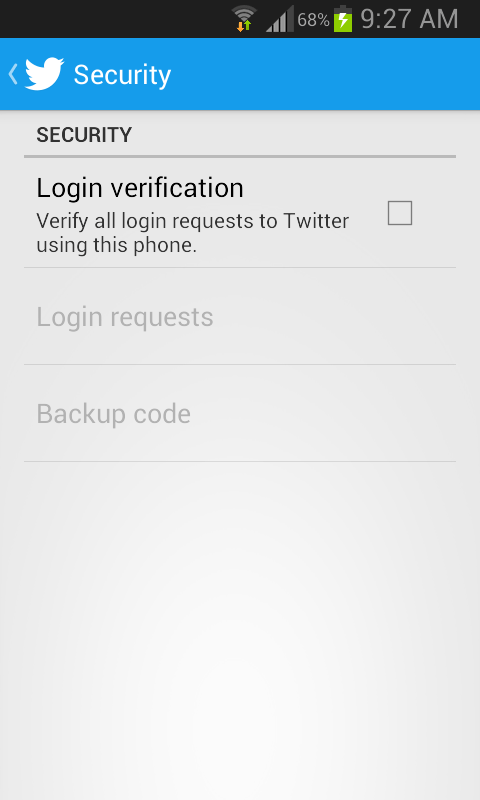
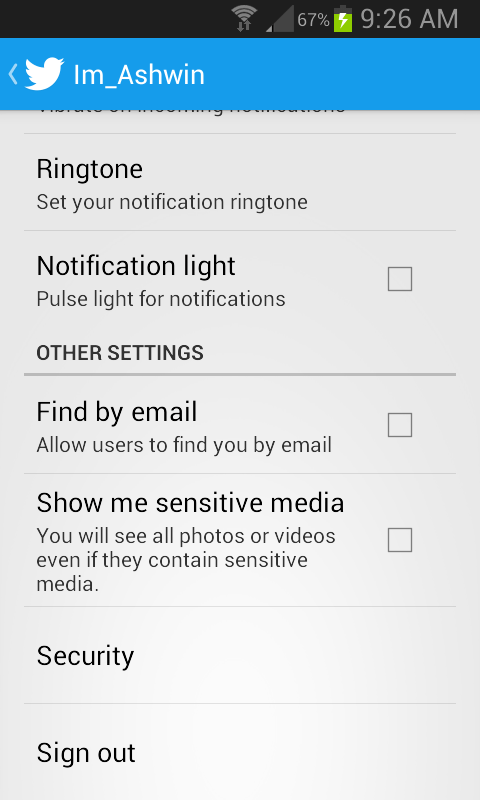
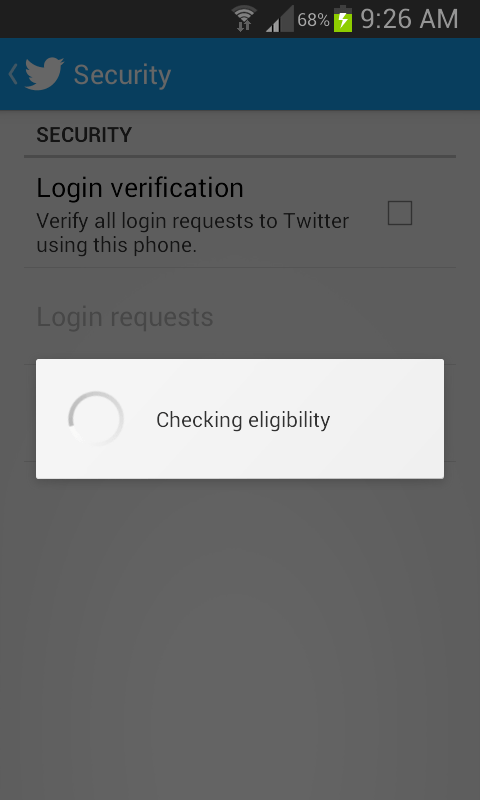
Open the Twitter App and Navigate to Settings>Account> and tap on Security. On the first run. it will check for the availability of the service. Let it finish, and then you can enable it by tapping on the option given on the screen.
 

1 of 3
- +
Twitter for Android Login Verification Security
Twitter for Android Login Verification First Run
Twitter for Android Login Verification

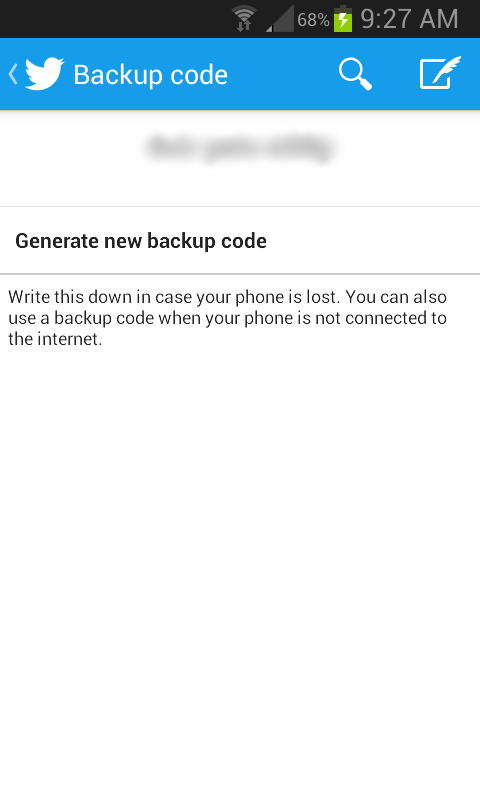
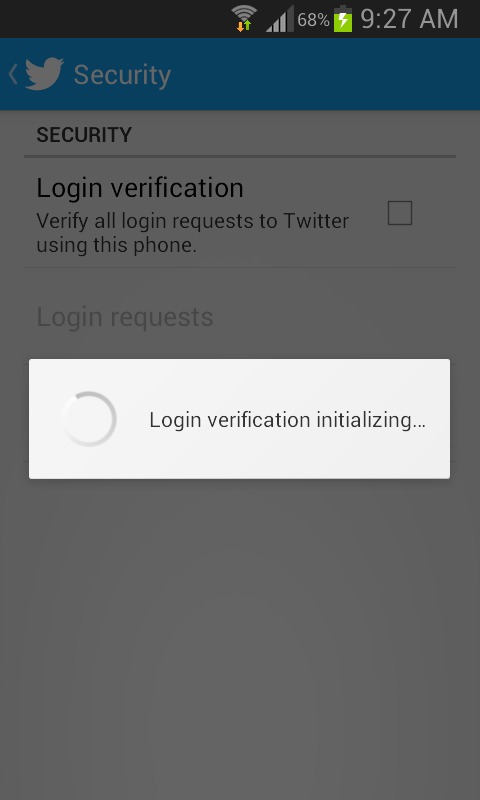
After enabling it, you will that the checkbox is ticked, and it will display a backup code. This is required in case you lose your phone or want to use the app on a newer device. So, note it down in a safe place.
 

1 of 3
- +
Twitter for Android Login Verification Initializing
Twitter for Android Login Verification Enable
Twitter for Android Login Verification Backup code


How to Authorize a Login Request:

Now that you have enabled the login verification system, time to test it out. Open your PC’s browser and try to log on to Twitter. You should be greeted with the following message,

Twitter Two Factor Authentication

You should get a notification on your phone which says you have a new “Login Request”. Tap on it and you will see details of the request, i.e the Country from where the request was sent and the browser details. Tap on the tick mark to enable the login request, and you should notice that Twitter should now load on your PC’s browser.


1 of 2
- +
Twitter for Android Login Verification New Login Request
Twitter for Android Login Verification Approve

Photo Galleries in Search Results:

You can now view photos in search results as a Gallery. Just tap on View more photos and it should be available, or not.

This is what Twitter says the Gallery should look like.

Twitter for Android Photo Galleries

(Notice the Facebook icon in the status bar, come on what were they thinking?)

That is not my point though, I am still not getting the Gallery view when I click on more photos.


 

1 of 2
- +
Twitter for Android Photo Galleries

I am not sure if this is geo-restricted, but it clearly doesn’t work on our devices.

Let us know if it worked for you in the comments below.

via Twitter Blog
Tags: AppsSecurityTwitter
Previous Post

[Review]: 10400mAh Dual USB Emergency Charger / Battery Bank

Next Post

Cut the Rope: Time Travel gets 15 new levels in the Disco Era Update

Ashwin Karthik

Ashwin Karthik

Originally a Business Grad, Ashwin is a natural at testing and reviewing apps & games for Windows and Android Apps, as well as flashing ROMs. A proud owner of a Redmi K20, he is also an avid gamer and loves playing on his Computer, PS4 & Nintendo consoles.

Follow Us

  • 914 Followers

Popular

  • How to fix lags in Citra emulator on Android

    What is the Citra resolution hack? Learn how to improve FPS in 3DS games on your Android phone

    15 shares
    Share 14 Tweet 0
  • How to install YouTube Revanced on your Android phone

    1 shares
    Share 0 Tweet 0
  • How to change the font size in Firefox for Android

    1 shares
    Share 0 Tweet 0
  • Google Pixel 6 and Pixel 6 Pro with Tensor processor launched

    2 shares
    Share 1 Tweet 0
  • How to install Elder Scrolls Morrowind on Android

    14 shares
    Share 13 Tweet 0
  • How to set up NextDNS on Android

    1 shares
    Share 0 Tweet 0
  • How to add a custom search engine in Firefox for Android

    1 shares
    Share 0 Tweet 0

Latest

POCO X6 NEO

Poco X6 Neo 5G unveiled, a Rebranded Redmi Note 13R Pro, in India

March 13, 2024
Realme 12+ 5G

Realme 12+ 5G, Realme 12 5G launched in India: Pricing, Specs, and Availability – All You Need to Know

March 6, 2024
Nothing Phone 2a

Nothing Phone 2a launched in India: Pricing, Specs, and Availability – All You Need to Know

March 6, 2024
IQoo Neo 9 Pro.png

iQoo Neo 9 Pro Launches in India: Snapdragon 8 Gen 2, 12GB RAM, and More

February 22, 2024
Oneplus 12r 256gb variant is also ufs 3 1 and not ufs 4 0 v0 mbzg2z9bxnhc1

Unpacking the OnePlus UFS 4.0 Controversy: Just it is UFS 3.1

February 13, 2024
Redmi Buds

Redmi Buds 5 Launched in India: Features, Price, and Availability

February 13, 2024
Moto G04

Motorola Announces Moto G04 Launch in India: A Budget Smartphone with Premium Features

February 11, 2024
AndroidPure

© 2024 AndroidPure - NonStop Android.

Navigate Site

  • Privacy
  • About Us
  • Tip Us
  • Contact Us

Follow Us

No Result
View All Result
  • Leaks
  • News
  • Reviews
  • Updates
  • How to

© 2024 AndroidPure - NonStop Android.